



TypeScript integration with Blazor in Visual Studio
In my previous job I used to work with Angular and one of the things I absolutely loved was working with TypeScript and how it was well integrated into the project structure. Recently at my current job I started using Blazor and one of the things I wanted to do was to make the TypeScript integration with Visual Studio as smooth as possible. In this article I will show you how to use gulp and rollup to automate tasks that will otherwise be painful and to integrate it with the Visual Studio task runner. Let’s get started!
The full source code can be found here: Source Code
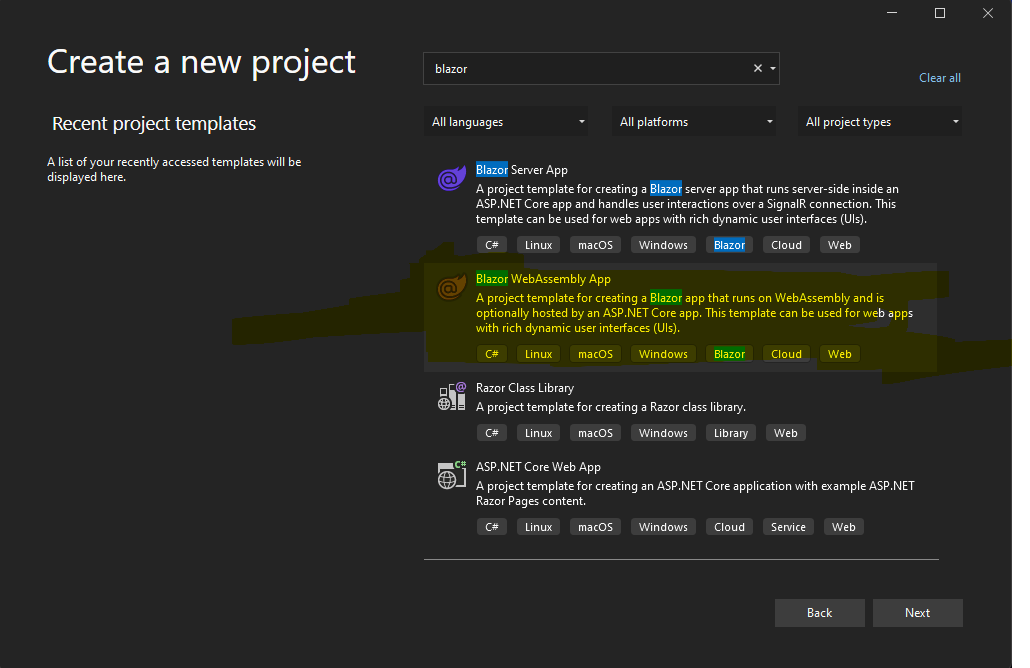
Let’s create a Blazor WebAssembly project in Visual Studio. Choose the Blazor WebAssembly template:
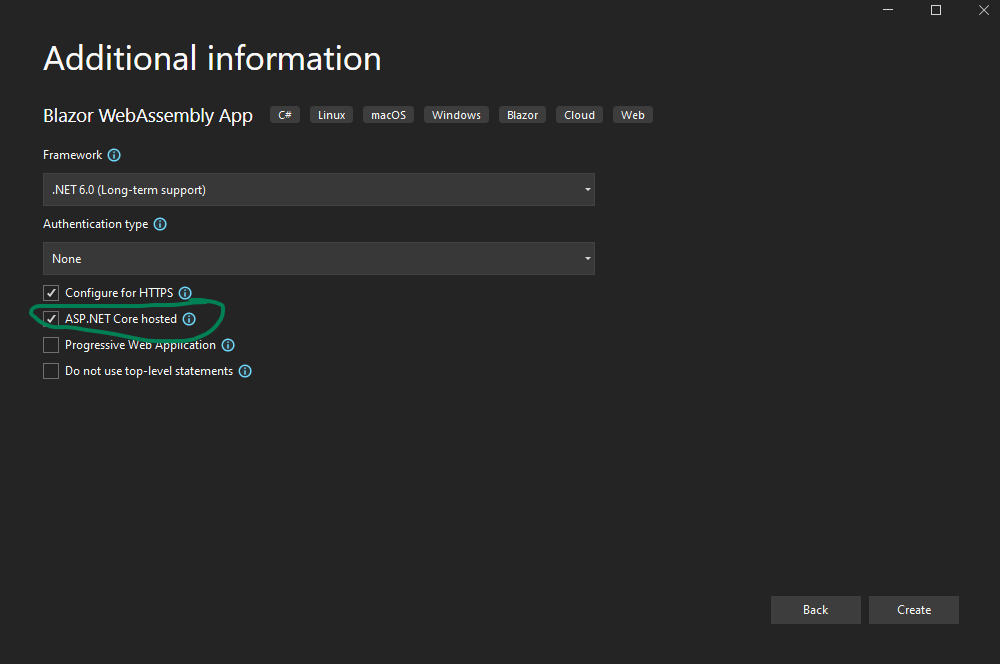
In the next screen choose the hosted model — this would host the Blazor client app and API project together. If you do not need an API and want the client project to be a standalone then uncheck this option; this will not make a difference to what we are trying to achieve in this article (but make sure you run the npm commands in the root of the client project).
Once the project is created there should be three projects created for you: the Client, Server and the Shared. We are mostly interested in the client project, and we will mostly work inside that folder. Let’s turn off TypeScript compilation in Visual Studio by adding TypeScriptCompileBlocked to the client project file.
<TypeScriptCompileBlocked>true</TypeScriptCompileBlocked>
Now let’s create the TypeScript files that we are going to compile and call from the Blazor app. Find these files on GitHub: TypeScript folder
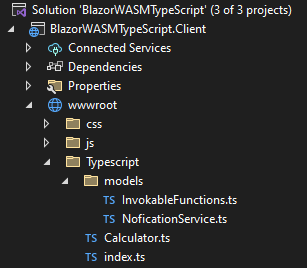
The models folder has a couple of helper files. The Calculator file contains the function that we are going to call from Blazor C# code. We export the Calculator class in the index.ts file (this will be the entry point for rollup).
A tsconfig file is needed for TypeScript compilation. Let’s add one to the root folder of the client project: tsconfig.json
Now let’s start the build setup for the project by running the npm init command in the client folder. This command will ask for inputs on things like name, author and so on — fill those in as you wish.
npm initThis will create a package.json and a package-lock.json in the client folder. Let’s add the required packages. Add this section to the package.json file before the ending curly brace.
"devDependencies": {
  "@rollup/plugin-commonjs": "^22.0.0",
  "@rollup/plugin-node-resolve": "^13.3.0",
  "@rollup/plugin-typescript": "^8.3.3",
  "fs-extra": "^9.1.0",
  "gulp": "^4.0.2",
  "rollup": "^2.75.6",
  "tslib": "^2.1.0",
  "typescript": "^4.7.4"
}
Run npm i to install the packages. Next, we will add a gulp file to help with the build process.
npm iI will briefly explain the gulp file and what it is doing. The build function creates a bundle file using rollup. We use the rollup JavaScript API and @rollup/plugin-typescript plugin to compile TypeScript files into JavaScript and we chain to the output of the bundle step to generate output JavaScript file(s).
The watch function looks for changes in the wwwroot/typescript folder and rebuilds and bundles the changed files.
Check out the gulp file in the repo: gulpfile.js
The watch function and the build function are exported at the end of the gulp file. Get more info on the various configuration options for rollup on this page: Rollup configuration docs
Now let’s hook up our gulp task with the Visual Studio build task. For that let’s add a build entry in the scripts section of the package.json file.
"build": "gulp"Open the .csproj file for the client project and add the following section:
<Target Name="PreBuild" BeforeTargets="PreBuildEvent">
  <Exec Command="npm install" />
  <Exec Command="npm run build" />
</Target>
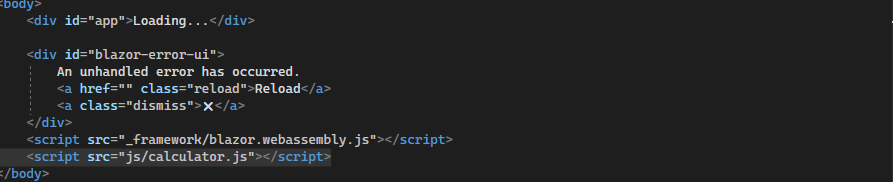
With this change Visual Studio will install app dependencies and build the TypeScript files for us. Now if the project is built a js folder will be created with the JavaScript file in it. Let’s reference the file in the index.html file so that it’s loaded when the page loads.
I have skipped the JavaScript interop code in this post to keep it relatively short. Please take a look at the JavascriptInterop.razor, JavascriptInterop.razor.cs and the CalculatorNotificationService.cs files for the interop code.
We are almost there — the final piece is hooking the gulp file to the task runner in Visual Studio. Right-click gulpfile.js and click Task Runner Explorer.
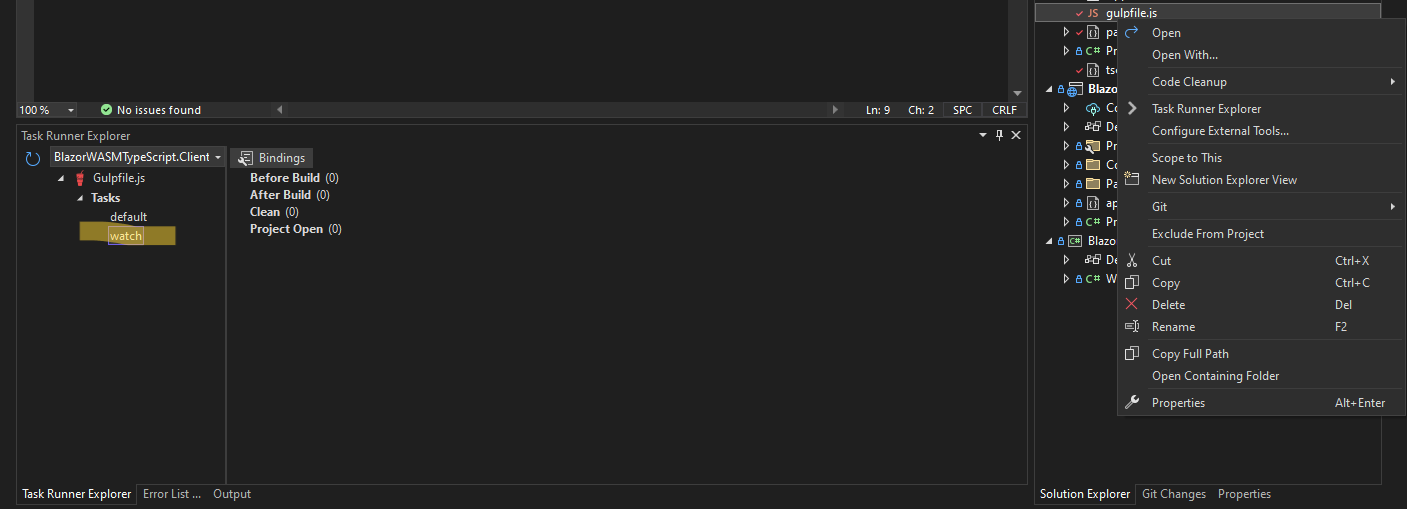
The watch task can be manually started or you can add a binding to automatically run when the project opens.
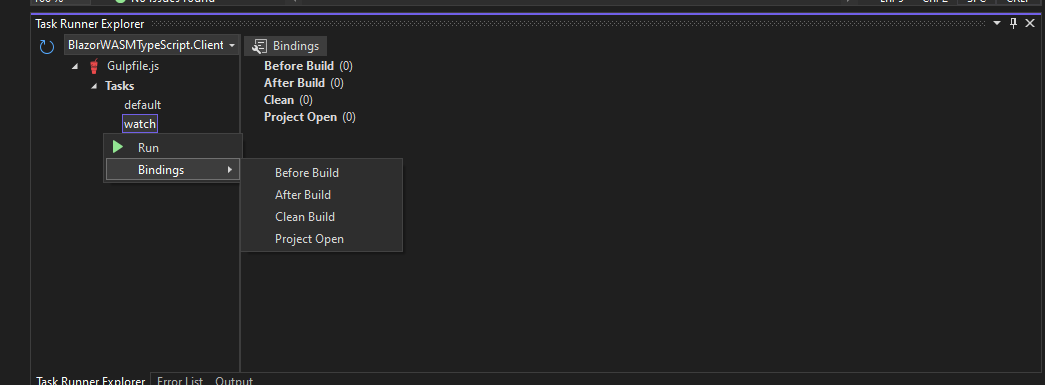
We are all set! With the watch running, file changes in the TypeScript folder will be picked up and built again.

In this article I showed you how to integrate gulp tasks with the Visual Studio task runner. I am planning on writing more articles showing how to leverage this project setup to speed up your development flow with Blazor and TypeScript.
Let me know what you think — feedback will be much appreciated!